

Key takeaways (quick answers):
- Google Gemini can save hours on lesson planning by generating fast first drafts for lessons, differentiation, rubrics, and slide outlines.
- The best results come from a structured prompt (use the PARTS framework) so the output is aligned to your standard, grade level, and time constraints.
- Use Gemini to batch repetitive planning work (bell ringers, question banks, unit outlines) and then revise with your professional judgment.
- Keep prompts student-safe: don’t paste names or personally identifiable information.
The bigger picture (NotebookLM → Gemini)
If you’ve been following along with the AI series, you’ve already seen how NotebookLM can help you make sense of a messy pile of information — and turn it into something you can actually use.
NotebookLM is my go-to when I’m starting with sources (articles, PDFs, notes) and I want cleaner summaries, study guides, or coaching-friendly “what matters most” takeaways — without drifting away from what the documents actually say.
So where does Google Gemini fit in the classroom?
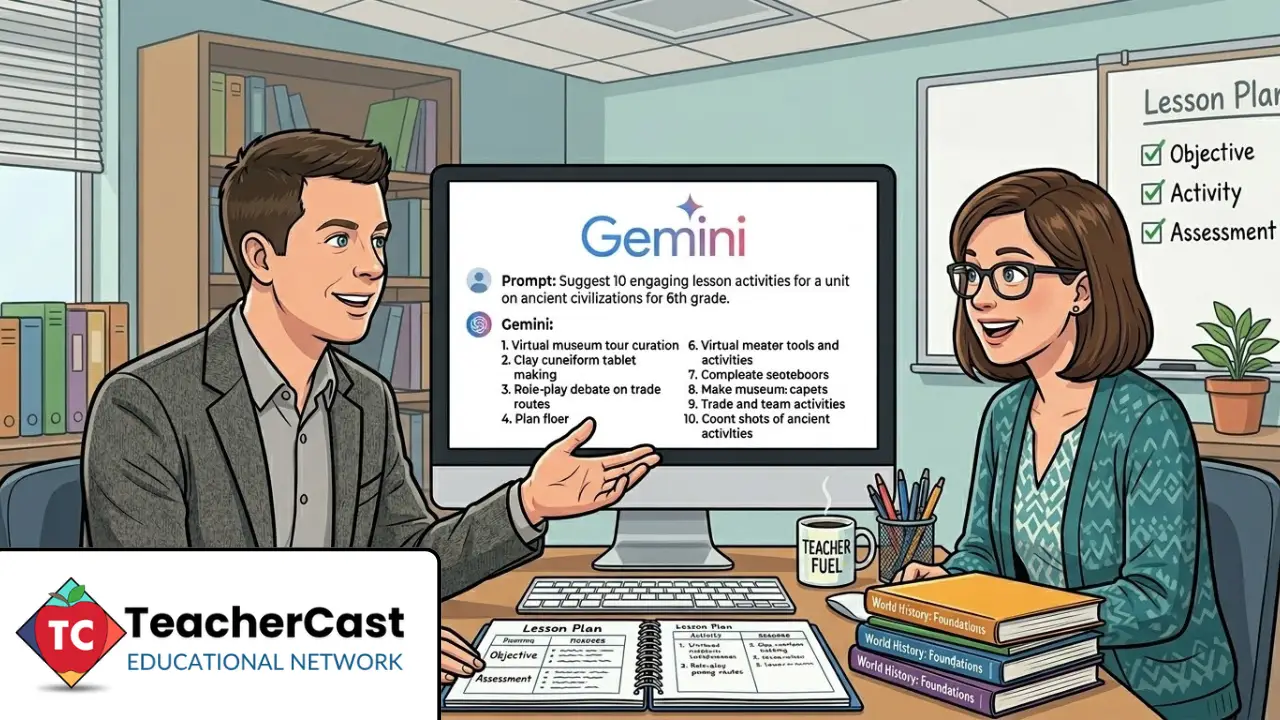
Google Gemini is different. It’s the tool I reach for when I’m staring at a blank page and I need to build something: a lesson outline, differentiated supports, a rubric, a slide sequence, or a week of bell ringers.
Here’s the simplest way to think about it:
- NotebookLM = “Help me understand what’s inside these sources.”
- Gemini = “Help me draft what I need for Monday.”
What you’ll get from this post
Below are 10 copy/paste Google Gemini prompts for lesson planning you can use for real teacher work like:
- generating a complete lesson plan from a single standard
- differentiating a lesson for multiple levels
- creating rubrics, bell-ringers, and slide outlines
And near the bottom, I’ll show you the PARTS framework — the small tweak that makes prompts clearer and cuts down the back-and-forth editing.
A quick, responsible-use note: Gemini should not “take over” your planning. Think of it as a thought partner that generates a fast first draft.
- You stay in charge of standards alignment, instructional moves, and what fits your students.
- Always review and revise for accuracy, reading level, accessibility, and representation.
- Privacy: Never include student names or personally identifiable information in prompts.
If you want better output with less editing, you can also use the PARTS framework near the bottom of this post to make any prompt stronger.
1. Generate a Complete Lesson Plan From a Single Standard
Stop staring at a blank document. Give Gemini your standard and let it build the first draft.
Try this prompt (copy/paste):
“You are an experienced 4th grade teacher. Create a detailed lesson plan aligned to CCSS.ELA-LITERACY.RI.4.2 (determining the main idea). Include: a learning objective, a 5-minute hook, a 15-minute mini-lesson with modeling, a 20-minute guided practice activity, and a 5-minute exit ticket. The class has 26 students with mixed reading levels.”
Why it works: You”re giving Gemini a persona, a standard, and a structure — which means the output is usable, not generic. You’ll still customize it, but you’re starting at 70% instead of zero.
2. Differentiate Any Lesson for 3 Levels in Seconds
You have the lesson plan. Now you need it in three versions. Gemini can split it for you.
Try this prompt (copy/paste):
“Take this lesson on identifying text features in nonfiction and create 3 differentiated versions: (1) Approaching — with sentence starters, a graphic organizer, and simplified text, (2) On-level — with guided questions and the original text, (3) Advanced — with an extension activity that requires synthesizing across two texts. Keep the same learning objective for all three.”
Why it works: Differentiation is the #1 time sink in planning. This prompt creates all three tiers in one shot, keeping your objective consistent while adjusting the scaffolding.
3. Create a Week of Bell-Ringer Activities in 2 Minutes
Monday through Friday, covered. Themed, varied, and ready to project.
Try this prompt (copy/paste):
“Create 5 bell-ringer activities for a 7th grade math class reviewing fractions, decimals, and percents. One per day (Monday-Friday). Each should take 3-5 minutes, increase slightly in difficulty through the week, and include an answer key. Mix formats: multiple choice, short answer, real-world application, error analysis, and a challenge problem.”
Why it works: Bell-ringers are low-stakes but high-effort to create from scratch. Batching a full week in one prompt means you plan once and execute all week.
4. Build an Entire Unit Outline With Pacing
Need to map out 3 weeks of instruction? Give Gemini the big picture and let it sequence the learning.
Try this prompt (copy/paste):
“You are a curriculum designer. Create a 3-week unit outline for a 10th grade world history class on the Industrial Revolution. Include: an essential question, 5-6 lesson topics with sequencing rationale, 2 formative assessments, 1 summative project, and suggested pacing (55-minute periods, 5 days/week). Leave room for 1 flex day per week.”
Why it works: Unit planning is where the biggest time savings happen. A strong AI-generated outline gives you the architecture — then you fill in the lessons you love.
5. Write Higher-Order Discussion Questions by DOK Level
Move past yes/no questions. Gemini can write questions at every depth of knowledge.
Try this prompt (copy/paste):
“Generate 12 discussion questions for a 5th grade class that just read ‘Esperanza Rising.’ Create 3 questions at each DOK level: DOK 1 (Recall), DOK 2 (Skill/Concept), DOK 3 (Strategic Thinking), DOK 4 (Extended Thinking). Label each question with its DOK level and include a brief teacher note on what to listen for in student responses.”
Why it works: Writing questions at multiple cognitive levels is a skill that takes practice. This gives you a ready-made question bank organized by rigor — perfect for Socratic seminars, literature circles, or formative checks.
6. Turn Any Lesson Into a Choice Board
Give students ownership by transforming your lesson into a differentiated choice board.
Try this prompt (copy/paste):
“Create a 3×3 choice board for a middle school science unit on ecosystems. Each cell should be a different activity that assesses understanding of food webs, energy transfer, and human impact. Include a mix of: writing, visual/creative, tech-based, and hands-on options. Students must complete 3 in a row (tic-tac-toe style). Include a brief rubric for each activity.”
Why it works: Choice boards are a fan-favorite differentiation strategy, but designing 9 quality activities is time-consuming. Gemini does the heavy lifting while you curate.
7. Generate Rubrics That Actually Make Sense
No more vague rubrics. Get clear, specific criteria in any format you need.
Try this prompt (copy/paste):
“Create a 4-point rubric for a 3rd grade informational writing assignment. Categories: Organization (introduction, body, conclusion), Evidence (facts and details from sources), Language (grade-appropriate vocabulary and sentence structure), and Conventions (spelling, grammar, punctuation). Use student-friendly language. Include descriptors for each level: 4 (Exceeds), 3 (Meets), 2 (Approaching), 1 (Beginning).”
Why it works: A well-built rubric saves time during grading and helps students understand expectations upfront. Gemini formats it cleanly so you can print or paste it into Google Classroom immediately.
8. Create Engaging Slide Decks With Speaker Notes
Build your presentation framework in minutes, not hours.
Try this prompt (copy/paste):
“You are a presentation designer. Create a slide-by-slide outline (12 slides) for a 6th grade lesson on the water cycle. Include: a title slide, a KWL warm-up slide, 4 content slides (evaporation, condensation, precipitation, collection) each with a key visual description and 3 bullet points, a video discussion slide, a hands-on activity slide, and a review/exit ticket slide. Add speaker notes for each slide that I can read while presenting.”
Why it works: You’re not just getting content — you’re getting a complete teaching script with speaker notes. Copy this into Google Slides, add images, and you’re ready to teach.
9. Write Parent-Friendly Lesson Summaries
Keep families in the loop without adding another task to your plate.
Try this prompt (copy/paste):
“Write a parent-friendly weekly newsletter blurb for a 2nd grade class. This week we’re learning: Math — addition with regrouping, ELA — story elements (character, setting, problem, solution), Science — weather observations. For each subject, include a 1-sentence summary of what we’re doing and a suggestion for how families can reinforce it at home. Keep it warm, concise, and jargon-free.”
Why it works: Family communication is important but draining. This prompt gives you a polished, consistent update you can send every Friday in under 2 minutes.
10. Reflect and Improve a Lesson You Already Taught
The best teachers iterate. Use Gemini as a thinking partner after the lesson.
Try this prompt (copy/paste):
“I just taught a lesson on persuasive writing to my 8th graders. What went well: students were engaged during the mentor text analysis. What didn’t: the independent writing time was too short, and several students didn’t finish. The transition from group work to writing took longer than expected. Help me revise this lesson with: adjusted timing, a strategy to speed up transitions, and a modification for students who need more time.”
Why it works: Most teachers reflect in their heads but never write it down. This prompt turns your mental notes into an actionable revision — and you’ll teach it better next time.
🚀 The Secret: Better Prompts = Better Plans
All of these prompts use the PARTS framework — a simple structure for getting great AI output every time:
LetterElementExamplePPersona — Set the AI’s role“You are an experienced 4th grade teacher”AAct — Name the task“Create a detailed lesson plan”RRecipient — Who is it for“for a class of 26 mixed-level students”TTheme — Your topic“aligned to CCSS RI.4.2 main idea”SStructure — Desired format“with objectives, timing, activities, and an exit ticket”
The more specific your prompt, the less time you spend editing the output. Be detailed upfront and you’ll save yourself rounds of follow-up.
Privacy reminder: Keep prompts student-safe. Do not paste student names, email addresses, grades, or any identifiable details.
How to think about it: Gemini in Classroom is not a “different” tool. It is the same thinking partner — you are just using it at the point of work.
- Planning a lesson? Use the prompts while creating assignment materials.
- Differentiating? Use the prompts to generate supports and extensions.
- Writing feedback? Use the prompts to draft clear, kind, actionable comments.
Quick swaps: make each prompt Classroom-ready
Use any of the prompts in this post and add one extra line at the end:
- Context: “I’m working in Google Classroom. Keep the output formatted so I can paste it into an announcement, assignment instructions, or a rubric.”
- Constraints: “Keep it under 150 words,” or “Give me a bulleted checklist,” or “Write at a grade 4 reading level.”
Example (copy/paste):
“I’m working in Google Classroom. Turn the output into:
- assignment directions (student-friendly),
- teacher notes (behind the scenes), and
- a short grading checklist.”
Want more prompts like these?
Here’s a free Notion page with 20 copy/paste prompts broken into 5 categories:
Get the next batch of prompts: Join the TeacherCast newsletter and I’ll send new classroom-ready AI prompts, workflows, and examples.
→ Join the newsletter
Keep Learning
FAQ: Google Gemini lesson planning (teachers)
Is it okay to use Google Gemini for lesson planning?
Yes — as long as you treat it like a first-draft thinking partner, not an autopilot. You’re still responsible for standards alignment, reading level, accessibility supports, and what fits your students.
What should I avoid putting into a Gemini prompt?
Avoid student names, email addresses, IEP details, grades, or anything that could identify a student. If you need context, describe the situation in general terms (grade level, skill needs, time constraints).
What’s the best prompt structure for lesson planning with Gemini?
Use PARTS: Persona (role) + Act (task) + Recipient (who it’s for) + Theme (standard/topic) + Structure (format). The more specific you are up front, the less you’ll edit later.
Get the book: Impact Standards gives you the complete framework for integrating technology with purpose and impact. → teachercast.net/impactstandards
Listen to the podcast: Digital Learning Today features conversations with educators making real impact. → teachercast.net/podcast
Join the newsletter: One practical strategy every week — no fluff. → teachercast.net/newsletter
Build Classroom Systems That Actually Work
Cut the tech overwhelm today. Download a free chapter of Impact Standards
and receive a weekly digital learning playbook.
