

Twas the night before your presentation and all thorugh the house, not an idea or concept was brewing … so what do you do?
If you”ve ever stared at a blank Google Slides deck the night before a professional development session, you know the feeling. You have a clear vision for what you want coaches and teachers to walk away understanding — but translating that vision into a polished, engaging slide deck takes time. A lot of time.
Today I want to walk you through how instructional coaches — and the teachers they support — can use Gemini to generate a first draft of a slide deck in minutes, and then make it their own.
What Is Gemini Canvas, and Why Does It Matter for Coaches?
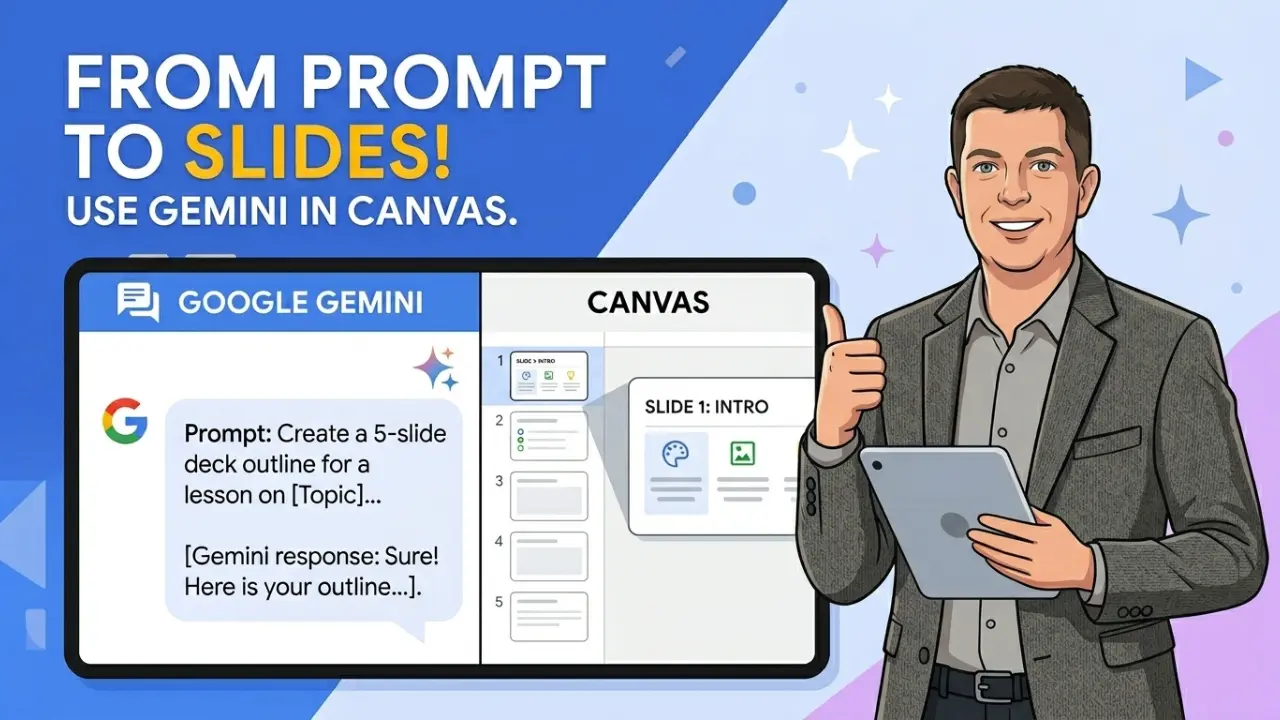
Gemini is Google’s AI assistant, and its Canvas feature goes beyond just answering questions. When you ask Gemini to build a slide deck using Canvas, it actually generates a visual, editable presentation right inside the Gemini interface — not just a text outline. You can review the slides, refine them through follow-up prompts, and when you’re ready, export the entire deck directly to Google Slides.
For instructional coaches, this is a game changer. Think about the kinds of decks you build regularly:
- Classroom observation debrief frameworks — visual tools to guide coaching conversations
- Instructional strategy spotlights — introducing a new Tier 1 strategy to a grade-level team
- PLC facilitation decks — keeping collaborative conversations structured and on track
- New teacher onboarding presentations — walking through school culture, expectations, and key systems
- Data review workshops — helping teams make sense of assessment results
- Book study or professional learning series — chapter-by-chapter visual guides for book studies
Each of these takes serious prep time. Gemini helps you get a strong draft in a fraction of the time — so you can focus your energy on the coaching conversation itself, not on perfecting slide layouts.
Why This Isn’t About Replacing Your Expertise
Let me be direct here: Gemini isn’t going to know your teachers, your school culture, or the specific goals you’ve been working toward in coaching cycles. What it can do is take care of the structural heavy lifting so that you can focus on the parts that require your professional knowledge.
Think of it as getting you 70–80% of the way there. That remaining 20–30% — your examples, your school’s language, your references to real classroom moments — that’s where your coaching expertise shines. Gemini just clears the runway.
Step-by-Step: How to Build a PD Deck with Gemini
Step 1: Open Gemini
Head to gemini.google.com and sign in with your Google account. If your school or district uses Google Workspace for Education, you likely already have access.
Step 2: Write a Specific Coaching Prompt
This is the most important step, and it’s where coaches have a real advantage — we’re trained to be precise about learning goals.
Instead of something vague like “make a PD presentation,” try something like:
“Create a 12-slide professional development presentation for middle school teachers on using Think-Pair-Share effectively. Include a slide for the research behind student discourse, three slides of classroom application examples, a turn-and-talk activity slide, a common mistakes slide, and a reflection/exit ticket. Keep the tone collaborative and coaching-focused.”
The more specific you are about audience, purpose, number of slides, and types of activities, the better your starting point will be.
Step 3: Select the Canvas Option
Before Gemini generates your slides, look for the Canvas option in the drop-down menu within the interface. This tells Gemini to build an actual visual slide deck rather than a text-based response. It may take a minute or two to generate — that’s normal.
Step 4: Review and Refine
Click through each slide and evaluate the structure. From there, you can use follow-up prompts to sharpen the deck:
- “Add a slide with a T-chart comparing surface-level vs. deep student talk”
- “Make the tone more conversational for a coaching context”
- “Add a slide with a Behavior-Specific Praise script example for teachers to practice”
- “Adjust the vocabulary to align with our school’s instructional framework”
Step 5: Export to Google Slides
When the structure looks good, hit the Export to Google Slides button (top right corner of the Canvas interface). From there, add your school’s branding, swap in real classroom photos, insert direct quotes from teachers you coach, and make it fully yours.
Practical PD Deck Ideas to Try Right Now
Need a starting point? Here are some prompts built specifically for instructional coaches:
Coaching Conversation Starter Deck:
“Create an 8-slide deck introducing the GROW coaching model to a group of instructional coaches. Include one slide per step with a coaching question example and a visual metaphor for each phase.”
Classroom Walkthrough Debrief Framework:
“Build a 10-slide PD deck for helping teachers understand the difference between evaluative and growth-focused feedback after a classroom observation.”
Tier 1 Strategy Spotlight:
“Create a 12-slide presentation on Cooperative Learning structures for a PLC meeting. Include the research base, 3 specific structures with step-by-step directions, and a planning template slide.”
New Teacher Orientation:
“Generate a 15-slide welcome and orientation deck for new teachers covering classroom culture, instructional expectations, and key resources. Tone should be warm, encouraging, and practical.”
The Bigger Picture: AI as a Coaching Multiplier
One of the things I talk about frequently in my work with coaches is the idea of protecting your time for the work only you can do. Relationship building, deep coaching conversations, modeling in classrooms, facilitating meaningful PLC dialogue — that’s the irreplaceable work.
Building the skeleton of a slide deck? That’s something Gemini can help with.
When you use tools like this intentionally — not as a shortcut, but as a time multiplier — you free yourself up to do more of the high-impact coaching that actually moves the needle for teachers and students.
So the next time you have a PD session on the calendar and a blank slide deck staring back at you, give Gemini Canvas a try. Build a first draft in minutes, pour your coaching expertise into the refinement, and walk into that room with a polished deck and more energy for the conversation that matters.
Ready to Try It?
Head to gemini.google.com, open Canvas, and try building your next PD deck with one of the prompts above. Then come back and let me know how it went — I’d love to hear what you created.
Looking for more ways to use AI in your coaching practice? Check out our resources on the TeacherCast blog for tools, strategies, and templates built specifically for instructional coaches.
Simplify Your Systems. Amplify Your Impact.
Join me every Sunday for my best productivity tips, tricks, and strategic systems delivered straight to your inbox.
Sign up today and instantly receive a free chapter of Impact Standards.
Like this:
Loading…
